MYBOOKSHELF WAS SUPERSEDED WITH NEW APPLICATION MYBOOKSHELF2
MyBookshelf is web based program to manage your library of ebooks. It is fully web based, with simple, yet powerful interface. It's written in python language and django web framework offers great flexibility and extensibility. Ideal for sharing ebooks within a group of people.
Description
This project started because my collection of ebooks grew bit larger and I need some way how to manage them. I look at Calibre, it is a great program with many features, but has one significant issue from my perspective - ebook can have only one file for given format. However I do have for some ebooks many files for one format (as I can get them from various sources) and do want to store them all. So I decided to create my own solutions, which also should be bit exercise for me in modern web interfaces.
Key design decisions were that it is web based (django), with MySql database backend, store only small set of ebooks metadata, no covers (purpose is to find ebook quickly - any extensive metadata can be found on internet), Linux platform, intended to run on my home server and provide services to all my family.
Key features:
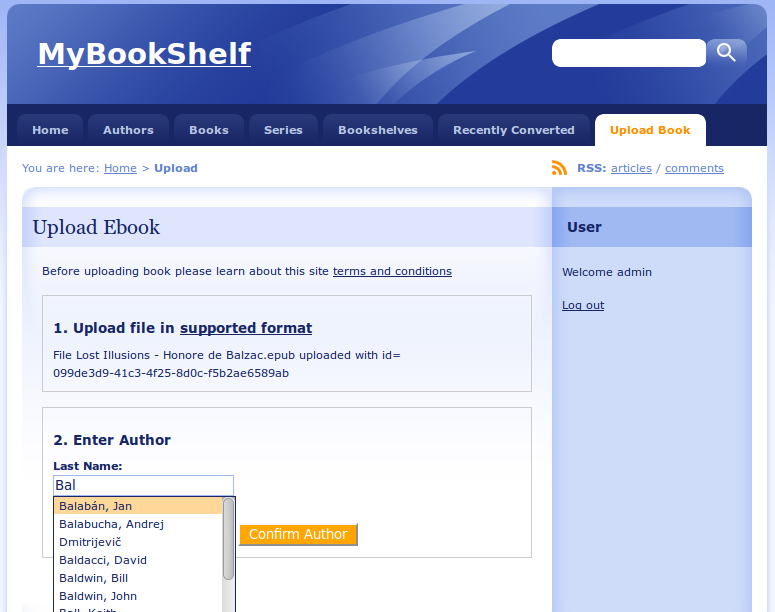
- Modern web interface with AJAX features (autocomplete etc).
- Easy search and browing in various dimensions (Author, Title, Category ...)
- Multiple formats supports and multiple files in same format
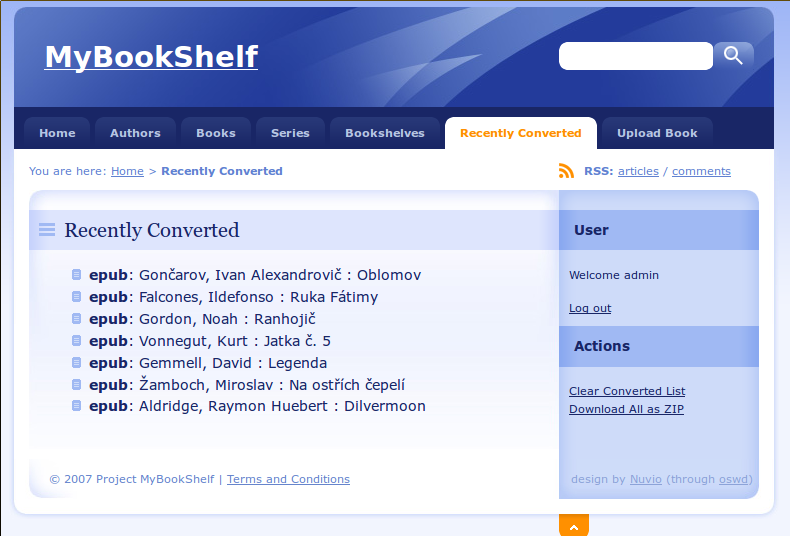
- One-click conversion to ebook format (epub, mobi, fb2), even from doc or docx (using LibreOffice and ebook-convert)
- Ebooks lists (bookshelves) to organize books. Bookshelves can be created easily as private or shared.
- Guided ebook upload (minimizes duplications)
- Can upload compressed files (zip or rar) - will be decompressed automatically
- Mass import from disk (using command like utility)
- Extensive user and access rights possibilities (thanks to Django)
- Admin features (both inline and through Django Admin app)
Screenshots
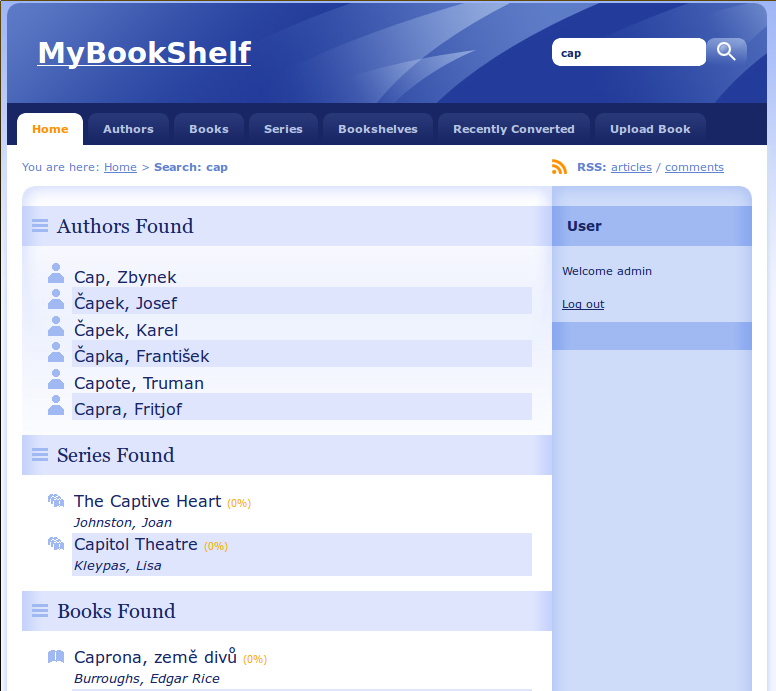
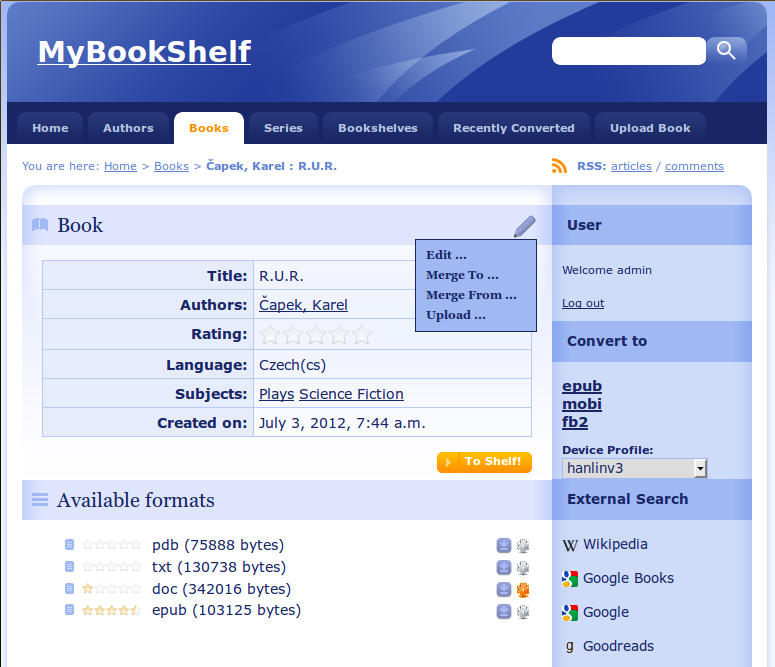
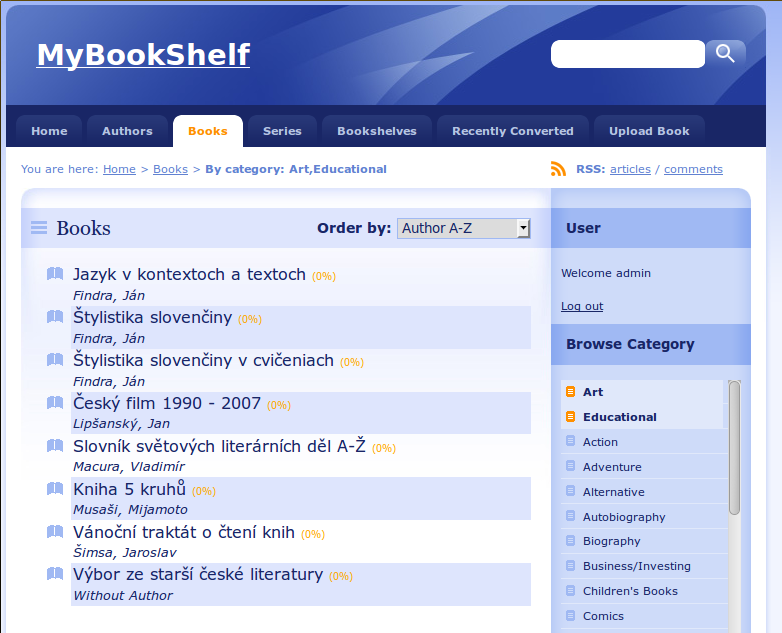
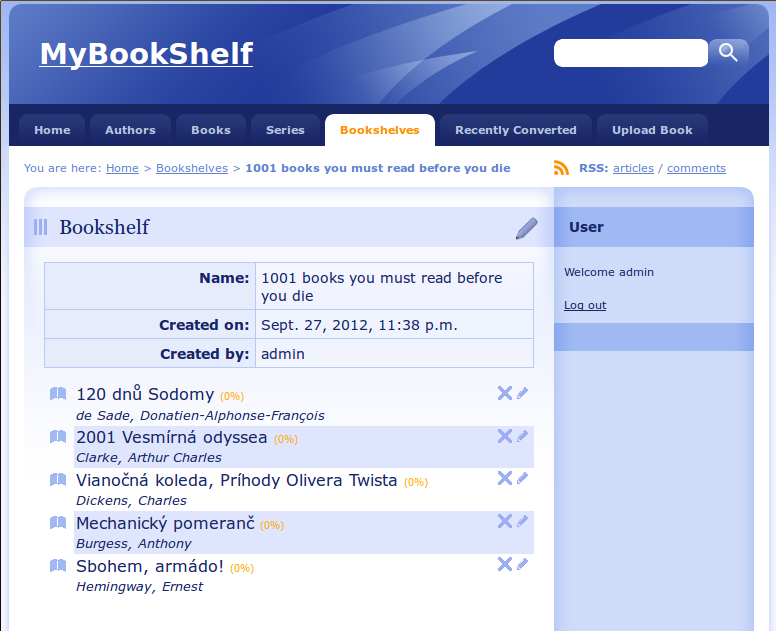
Download
Mybookshelf can be installed from source only. Code is hosted on launchpad, easiest way to get it is :
bzr checkout --lightweight lp:mybookshelf
this will get just trunk version without history, if you plan to develop, should get rather full branch with history:
bzr branch lp:mybookshelf
All code is available as open source under GPL v3 license.
Bugs should be reported on launchpad.
Installation
Mybookshelf will run only on Linux. Installation is manual, here are installation steps (Ubuntu/Debian):
- **Install dependencies:**
sudo apt-get install apache2 mysql-server python-django python-mysqldb libapache2-mod-wsgi libreoffice libxt6 bzr# calibre installed from latest version rather then from distro packagessudo python -c "import sys; py3 = sys.version_info[0] > 2; u = __import__('urllib.request' if py3 else 'urllib', fromlist=1); exec(u.urlopen('http://status.calibre-ebook.com/linux_installer').read()); main()" - **Install Mybookshelp source:**
(if you consider development of code usebzr checkout --lightweight http://bazaar.launchpad.net/~ivan-zderadicka/mybookshelf/trunk/bzr brachinstead) Move file to final destination - like /opt/mybookshelfsudo mv mybookshelf/ /opt - **Create database:**
mysql -u rootmysql> create database ebooks;Query OK, 1 row affected (0.00 sec)mysql> grant all on ebooks.* to 'ebooks'@'localhost' identified by 'ebooks';Query OK, 0 rows affected (0.05 sec)mysql> flush privileges;Query OK, 0 rows affected (0.00 sec)exit - **Create directories for ebooks:**
mkdir ebooksmkdir ebooks/librarymkdir ebooks/convertedmkdir ebooks/reconchmod -R 0777 ebookslast command is to assure that web server user will have write access - if you are concerned about security, you can consider different setup - special security group or something like this - **Edit /opt/mybookshelf/settings.py**
Set database parameters:
DATABASE_NAME = 'ebooks'DATABASE_USER = 'ebooks'DATABASE_PASSWORD = 'ebooks'Set ebook directories:BOOKS_BASE_DIR="/home/ivan/ebooks/library"BOOKS_RECON_DIR="/home/ivan/ebooks/recon"BOOKS_CONVERTED_DIR="/home/ivan/ebooks/converted"And disable debug toolbar (in MIDDLEWARE_CLASSES and INSTALLED APPS )#'debug_toolbar.middleware.DebugToolbarMiddleware',#'debug_toolbar', - **Now sync database - e.g. create tables and initial data**
cd /opt/mybookshelf/./manage.py syncdb # also create an admin user!./manage.py loaddata data.xml - **Test it**
./manage.py runserver your_ip:5555this runs emended server and try to connect with browser to it. Login as your admin user. Try to upload ebook and convert it. Then stop this command. - **Edit django.wsgi**
set
path = '/opt/mybookshelf' - **Create new virtual server configuration **in /etc/apache2/sites-available:
And configure also<VirtualHost *:5555> ServerName localhost ServerAlias localhost ServerAdmin ivan DocumentRoot /opt/mybookshelf Alias /robots.txt /opt/mybookshelf/robots.txt Alias /favicon.ico /opt/mybookshelf/favicon.ico Alias /media/ /usr/share/pyshared/django/contrib/admin/media/ Alias /site_media/ /opt/mybookshelf/site_media/ <Directory /opt/mybookshelf> Order allow,deny Allow from all </Directory> <Directory /usr/share/pyshared/django/contrib/admin/media> Order allow,deny Allow from all </Directory> WSGIScriptAlias / /opt/mybookshelf/django.wsgi </VirtualHost>/etc/apache2/ports.confand put thereListen 5555. Also:sudo ln -s /etc/apache2/sites-available/mybookshelf /etc/apache2/sites-enabled/sudo apache2ctl restartand test again in the browser